
JeffinPTC
New member
- First Name
- Jeff
- Joined
- Feb 18, 2026
- Threads
- 1
- Messages
- 2
- Reaction score
- 0
- Location
- Peachtree City GA
- Vehicles
- 25 Flash
- Thread starter
- #1
I'm new to the party with a 25 Flash bought last week. I took the rebate instead of the Ford Charger because we already have a Tesla Wall Charger. We've never had an issue charging the Tesla, but a series of issues developed trying to charge the Flash.
1. The first time I tried to charge, I found out that the Ford supplied adapter is only for charging from the Tesla Superchargers and for some reason the truck will not draw power from it. Seems designed to sell more $100 adapters.
2. After buying a Lectron 48a adapter(yes the amp rating matter), it still would not charge. After 4 hours of multiple emails to Lectron and attempts to connect, the Lectron guy suggested:
Given the information we have so far, we suspect the Tesla Wall Connector is not enabled to charge a non-Tesla via an adapter.
There is a setting called compatibility mode specific to Tesla Wall Connectors Gen 3.
3. But I could not get to this menu. After the electrician installed the Wall Adapter 2 years ago, I plugged up the Model 3 and it just worked. No menu, no settings. And now I can't find the provisioning card. The QR code on the side of the Wall Charger must be Tesla proprietary because nothing happens when you point at it. So, remove the 4 T25 screws holding it on the mount and there is a Wifi network and PW to get to provisioning on your Tesla phone app. CB off is Best Practice before you open this, but the contacts inside are protected like a duplex outlet. Take a pix of the codes for the numerous times you'll have to do this, and for next time when you buy a new router.
4. I found my home network and put in the PW, and got the "Success!" But the app still said "no internet" or similar.
5. Work from home technogeek son gets involved and finds this:
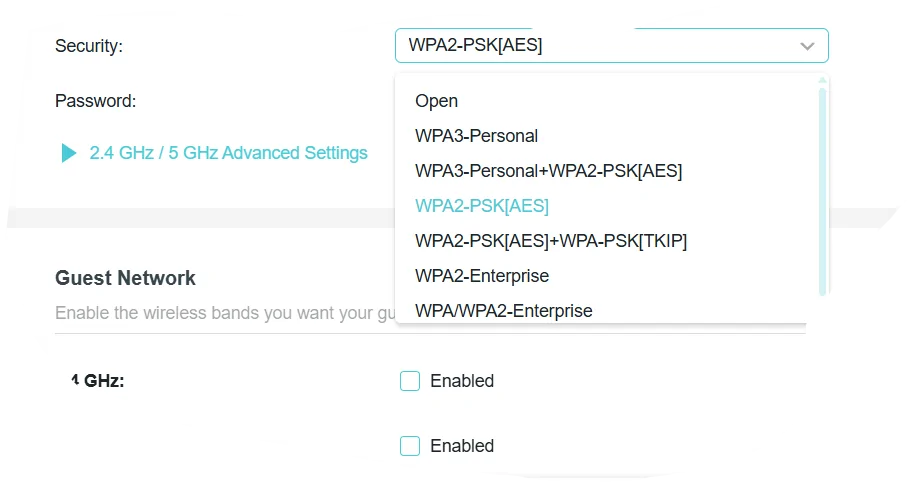
The Tesla Wall connector will only work with WPA 2 security, not WPA3/ 2 that everything else in the house works with. Thx Elon. So, open up the router setup page, 192.168.0.1 for my TP-Link (PW may be admin, admin if you've never changed it, you should), find the Wireless Settings page, and change the drop down to WPA 2. Here's what my settings page looks like

Good Luck!
Jeff
1. The first time I tried to charge, I found out that the Ford supplied adapter is only for charging from the Tesla Superchargers and for some reason the truck will not draw power from it. Seems designed to sell more $100 adapters.
2. After buying a Lectron 48a adapter(yes the amp rating matter), it still would not charge. After 4 hours of multiple emails to Lectron and attempts to connect, the Lectron guy suggested:
Given the information we have so far, we suspect the Tesla Wall Connector is not enabled to charge a non-Tesla via an adapter.
There is a setting called compatibility mode specific to Tesla Wall Connectors Gen 3.
- Ensure Firmware Version: Verify that your Wall Connector is running firmware version 21.36.4 or later, as Compatibility Mode is supported from this version onward.
- Access the Tesla One App:
- Open the Tesla One app on your device.
- If you haven't already, connect your Wall Connector to the app by following the on-screen instructions.
- Navigate to Access Control Settings:
- In the Tesla One app, select your Wall Connector.
- Tap on 'Access Control' to view the available charging access options.
- Select Compatibility Mode:
- Choose the 'Compatibility Mode' option.
- This setting allows your Wall Connector to be compatible with older software versions and can help resolve charging issues with certain electric vehicles.
- Save and Exit:
- Confirm your selection and exit the settings menu
3. But I could not get to this menu. After the electrician installed the Wall Adapter 2 years ago, I plugged up the Model 3 and it just worked. No menu, no settings. And now I can't find the provisioning card. The QR code on the side of the Wall Charger must be Tesla proprietary because nothing happens when you point at it. So, remove the 4 T25 screws holding it on the mount and there is a Wifi network and PW to get to provisioning on your Tesla phone app. CB off is Best Practice before you open this, but the contacts inside are protected like a duplex outlet. Take a pix of the codes for the numerous times you'll have to do this, and for next time when you buy a new router.
4. I found my home network and put in the PW, and got the "Success!" But the app still said "no internet" or similar.
5. Work from home technogeek son gets involved and finds this:
The Tesla Wall connector will only work with WPA 2 security, not WPA3/ 2 that everything else in the house works with. Thx Elon. So, open up the router setup page, 192.168.0.1 for my TP-Link (PW may be admin, admin if you've never changed it, you should), find the Wireless Settings page, and change the drop down to WPA 2. Here's what my settings page looks like
Good Luck!
Jeff
Sponsored